
Adding LTI Tools
An LTI tool is a problem type that allows you to integrate your LMS with a wide variety of LTI-compliant learning tools available on the web. In a typical use case, this allows your user to use the tool from your LMS, and have the tool send back a grade that is recorded in the LMS.
- Before you can use an LTI too, you must have the block installed and add it in your advanced settings.
- Navigate to 'Settings'>'Advanced Settings' in your course.
- In 'Advanced Module List' add "lti_consumer".
- Ensure that "lti_consumer" is wrapped in double quotes, and that it has a comma after the item unless it is the last or only item in the list.
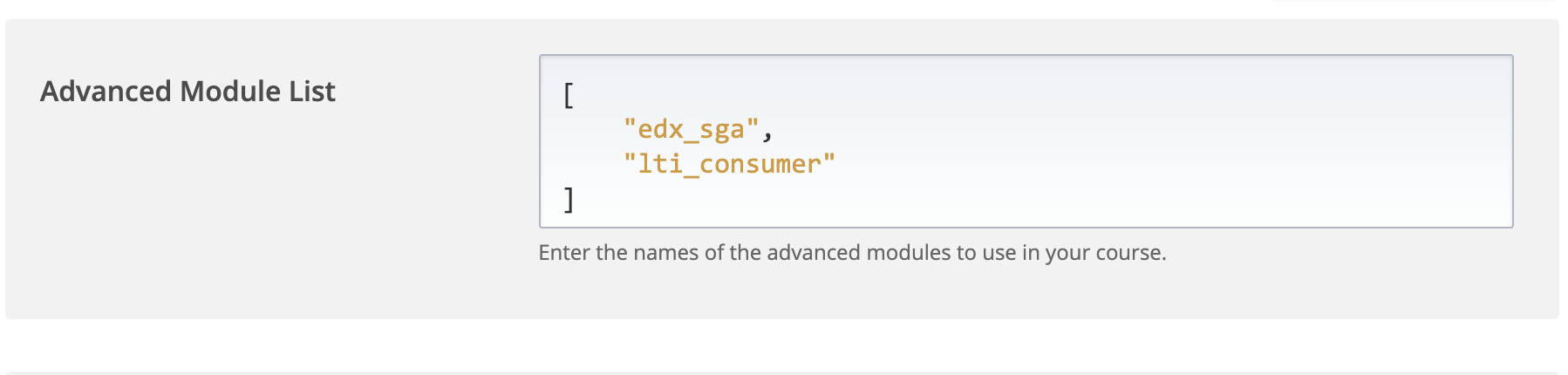
- Ensure that "lti_consumer" is wrapped in double quotes, and that it has a comma after the item unless it is the last or only item in the list.
- Save your changes
- You must also define an LTI Passport to authenticate your LMS with the LTI tool.
- Navigate to 'Settings'>'Advanced Settings' in your course.
- In 'LTI Passports', add a passport in the following format "lti_id:lti_key:lti_secret"
- LTI ID: Simply an identifier for your key value pair. You can set this to whatever you want. E.g. my_lti_tool
- LTI Key: The LTI key is a sequence of characters that you obtain from the LTI tool provider. The client key is used for authentication and can contain any number of characters.
- LTI Secret: The LTI secret is a sequence of characters that you obtain from the LTI tool provider. The client secret is used for authentication and can contain any number of characters

- Save your changes
- Back in your unit, click the 'Advanced' component, then 'LTI Consumer'

- You may edit the following fields:
Display name - This is displayed above your LTI block on the LMS. E.G Code Exercise
LTI ID – This must match the LTI ID you set in Advanced Settings in the step above. It determines which key & secret to use to authenticate with the LTI provider.
LTI URL - This is a launch URL which indicates what tool. It is usually provided by the LTI tool provider, and it is usally not the normal web URL for the service. If you are unsure what to put here, ask the LTI tool provider.
Scored: - Choose 'true' if you'd like to receive a grade back from the LTI provider.