
NDI Open EdX Documentation

NDI Open EdX Documentation

  • Docs

›Creating a Course

Creating a Course

  • Create a New Online Course
  • Set Course Schedule & Details
  • Add Sections, Subsections & Units
  • Managing Unit and Component
  • Adding Videos
  • Adding HTML
  • Adding Discussions
  • Adding Problems

    • Adding Problems
    • Problem Types
    • Drag and Drop
    • Pointing on a picture
    • Adding Staff-Graded Assignment
    • Adding LTI Tools
  • Adding Images and Figures
  • Uploading Static Content
  • Course Visibility
  • Creating pages
  • Grading
  • Commonly Used Advanced Settings

Running a Course

  • Managing Certificates
  • Common Instructor Dashboard Tasks
  • Managing Course Discussions

Advanced Management

  • Importing / Exporting Courses
  • Inactivate / Activate a User
  • Understanding User Roles
  • Set a user to staff or superuser
  • Server Tasks

    • SSH into Server
    • Delete a Course

Instructional Design Tools & Strategies

  • Video: Basic Production
  • Video: Scripting
  • Video Strategy: Introduction & Summary Videos
  • Video Strategy: Interview
  • Video Strategy: Interactive Video
  • Feedback: Feedback Basics
  • Engagement: Discussion Call to Action
  • Engagement: Wordcloud
  • Engagement: Course Explorer
  • Engagement: Journal
  • Engagement: Annotation
  • Engagement: Interactive Map

Course Visibility

A hierarchy of settings control visibility of course content.

Course Release Date

  1. Set via Studio > Settings > Schedule & Details
  2. Note than when you set the course release date, sections and subsections are automatically dated to match

Section Release Date

  1. Set via Studio > Content > Outline at the top of each section Course Release Date
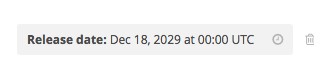
  2. Note that when you set the section release date, sub-sections are automatically dated to match

Subsection Release Date

  1. Set via Studio > Content > Outline>Selected Section. You must drill into a sub-section from the outline to reach the sub-section detail page.
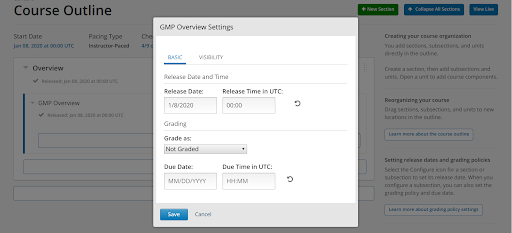
    Course subsection settings

Unit-Level Visibility

  1. Set via Studio > Content > Outline > Selected Unit. You must drill into a unit from the outline to reach the unit detail page.

  2. Within a Unit, you can choose 'Hide from learners' to make that unit visible to staff only.
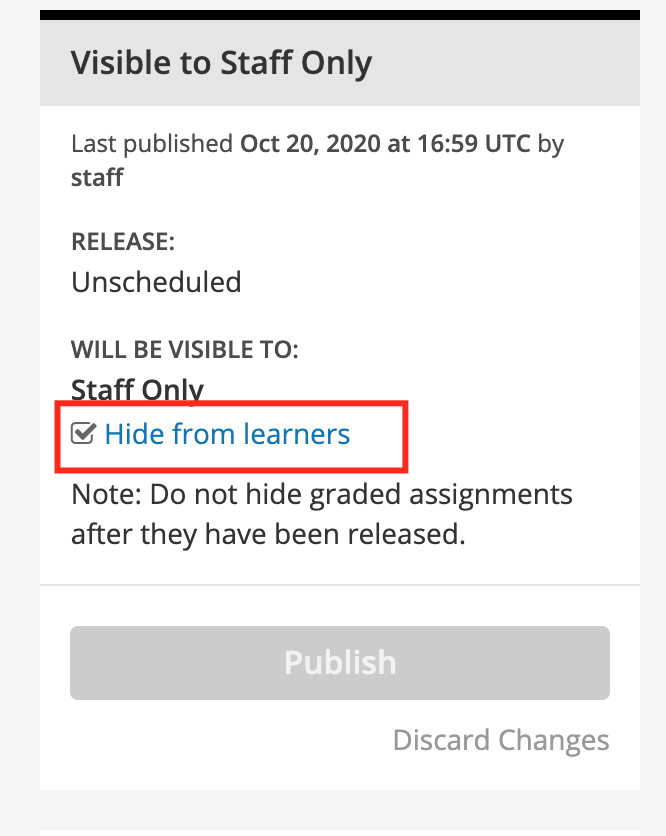
    Unit Visibility deprecated

Controlling Visibility of Pages

Some pages (i.e. Wiki) can be hidden from view

  1. In Studio, navigate to Content > Pages.

  2. An eye icon appears on certain pages. Hide page visibility

  3. Click the icon to hide that page from student view. Unhide page visibility

← Uploading Static ContentCreating pages →
  • Controlling Visibility of Pages
NDI Open EdX Documentation
Docs
Create an Online Course
More
Curricu.me Website
Copyright © 2024 All Rights Reserved - National Democratic Institute