
Set Course Schedule & Details
The Course Schedule & Details Page is a page in Studio where you can set high level course details such as start date, description, course image, etc.
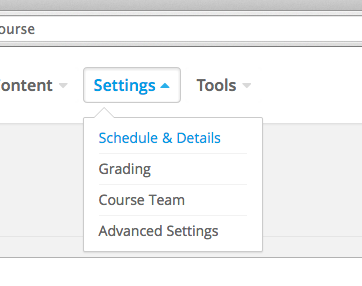
From Studio, select Settings > Schedule & Details.
Set Course Pacing
- Instructor-paced courses progress at the pace that the course author sets. You set release dates for content and due dates for assignments, and assignment due dates are visible in the LMS. Learners cannot access course content before its release date, and learners must complete assignments by their due dates.
- In self-paced courses, learners can access all course materials when the course begins, and assignments do not have due dates. You do not have the option to set release dates for course content or due dates for assignments. The LMS shows indicators for graded assignments but no due dates. Learners can complete course material at any time before the course end date.
Set Course Schedule Details.
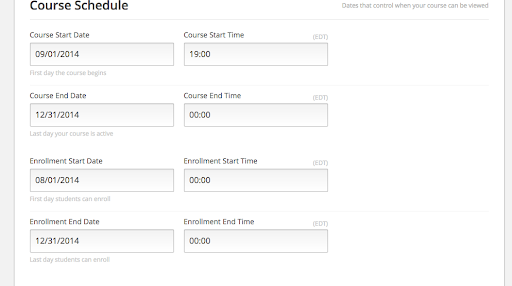
- Course Start Date and Time – This is the date and time that the course content will first be available to students, if they are enrolled. Note that even though this sets the overall start date, you can still have different start times for different sections & sub-sections in the Outline. If you would like your course to be available as soon as you make it, then set a start date in the past.
- Course End Date and Time – This is the date and time that the course content will become unavailable. Students who try to access content after this date will be locked out. This field is optional and can be left blank.
- Enrollment Start Date and Time – This is the date and time that students will be able to start enrolling in the course from the /courses page. Even though they may enroll on this date, they can’t access course content until the start date. This must be set in the past in order for the course to appear in the course catalog.
- Enrollment End Date and Time – This is the date and time after which students will be locked out from registering for the course.
If you want to hide a course from your site's homepage (e.g. https://ed.ndi.org):
Go to the 'Advanced Settings' > Then look for 'Course Visibility in Catalog' > Change "both" to "none" and save the changes.*
Note that due to caching, you should wait up to 10 minutes for this change to take effect.
If you want to hide a course from your site's course catalog (e.g. https://ed.ndi.org/courses)
Close the enrollment by setting the enrollment start date far in the future OR setting the enrollment end date in the past.
Set Introducing Your Course details.
- Course Short Description – This no longer appears anywhere visible, so you can choose to leave it blank. Limit to 150 characters
- Course Overview – This is an HTML input box with several pre-formatted areas for description, prerequisite, faq, etc. You can include images here as well with an
ref.
- Course Image – Upload the course image which will show up on the course catalog and a user’s course listing.
- Images should be 375 x 200.
- Course Introduction – This is an optional video. Enter only the Youtube ID. So https://www.youtube.com/watch?v=-pd8DITrk0M becomes -pd8DITrk0M.
Set Requirements Section.
- Hours of Effort per Week – Optional text box to let students know the expected weekly time commitment.
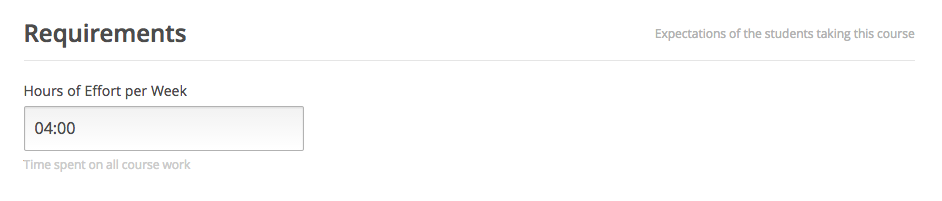
- Hours of Effort per Week – Optional text box to let students know the expected weekly time commitment.
Optionally, set a Prerequisite Course
- Prerequisite Course - Requires that a student complete a prerequisite course before being allowed to start the target course. They can still enroll in the target course before completing the prerequisite.
This field only shows the course name and not the full ID. To differentiate between courses, you may want to use Course names that do not duplicate.