NDI Open EdX Documentation

NDI Open EdX Documentation

  • Docs

›Advanced Management

Creating a Course

  • Create a New Online Course
  • Set Course Schedule & Details
  • Add Sections, Subsections & Units
  • Managing Unit and Component
  • Adding Videos
  • Adding HTML
  • Adding Discussions
  • Adding Problems

    • Adding Problems
    • Problem Types
    • Drag and Drop
    • Pointing on a picture
    • Adding Staff-Graded Assignment
    • Adding LTI Tools
  • Adding Images and Figures
  • Uploading Static Content
  • Course Visibility
  • Creating pages
  • Grading
  • Commonly Used Advanced Settings

Running a Course

  • Managing Certificates
  • Common Instructor Dashboard Tasks
  • Managing Course Discussions

Advanced Management

  • Importing / Exporting Courses
  • Inactivate / Activate a User
  • Understanding User Roles
  • Set a user to staff or superuser
  • Server Tasks

    • SSH into Server
    • Delete a Course

Instructional Design Tools & Strategies

  • Video: Basic Production
  • Video: Scripting
  • Video Strategy: Introduction & Summary Videos
  • Video Strategy: Interview
  • Video Strategy: Interactive Video
  • Feedback: Feedback Basics
  • Engagement: Discussion Call to Action
  • Engagement: Wordcloud
  • Engagement: Course Explorer
  • Engagement: Journal
  • Engagement: Annotation
  • Engagement: Interactive Map

Importing / Exporting Courses

Exporting Courses

Exporting a course is useful as a backup. You may want to export and then import a course if you want to duplicate the course but change a few things, for example offering the 2015 version of a course run in 2014. You may also want to do this if you want to copy or move a course from one microsite to another. See Copying a Course for a MicroSite below.

  1. Log into Studio.

  2. Select the course you would like to export.

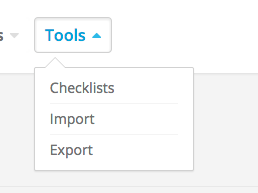
  3. Go to Tools > Export.

    Tools Export

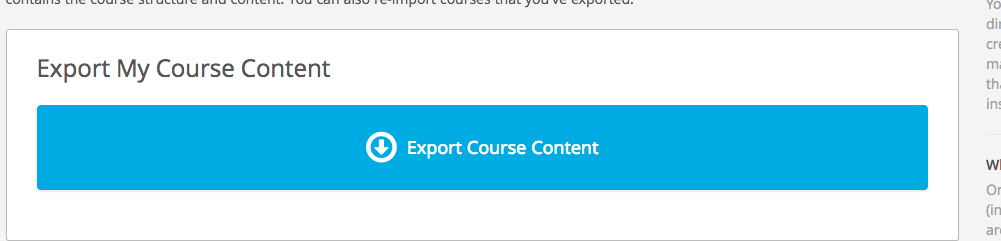
  4. Click “Export Course Content”

    Export Course Content

  5. You will be prompted to save a .tar.gz file.

    1. It is useful to give this a descriptive, date-stamped name (e.g. 20170203Communication.tar.gz)
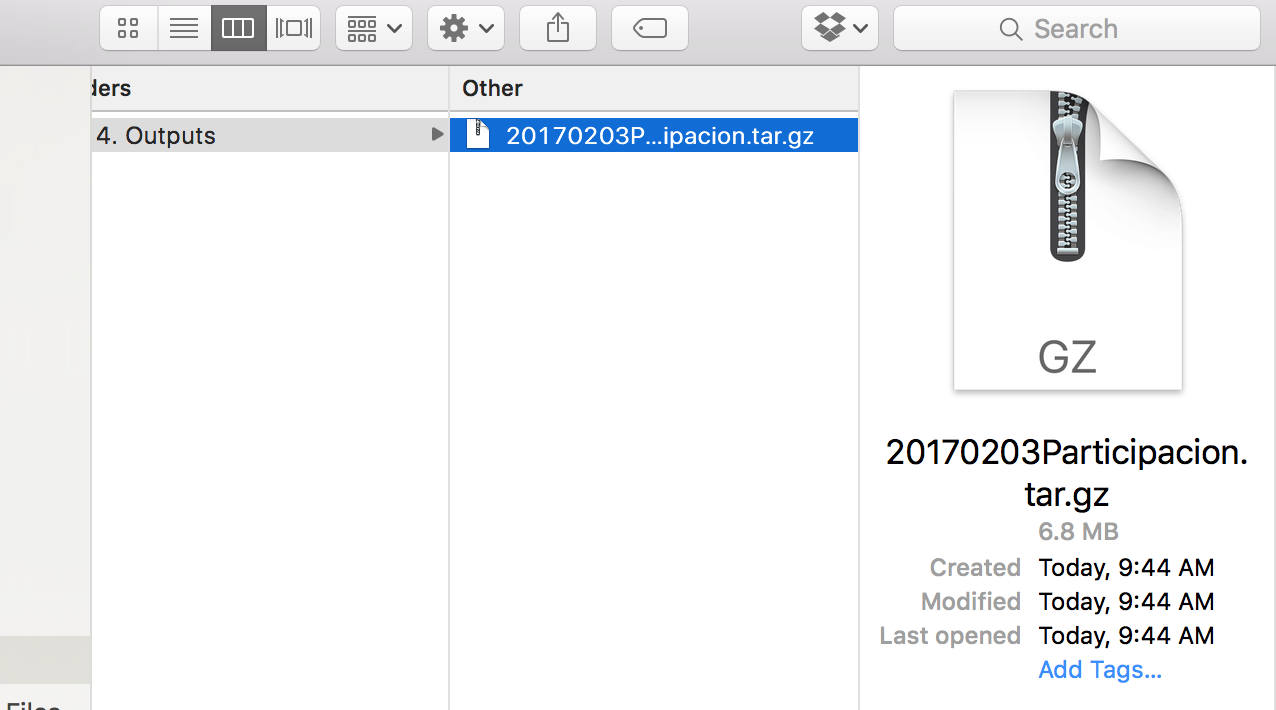
    2. Exported Course Tar

Importing Courses

  1. Create a New, EMPTY, course in Studio.

    New Course

  2. Once the empty course is created, go to Tools > import. Tools Export

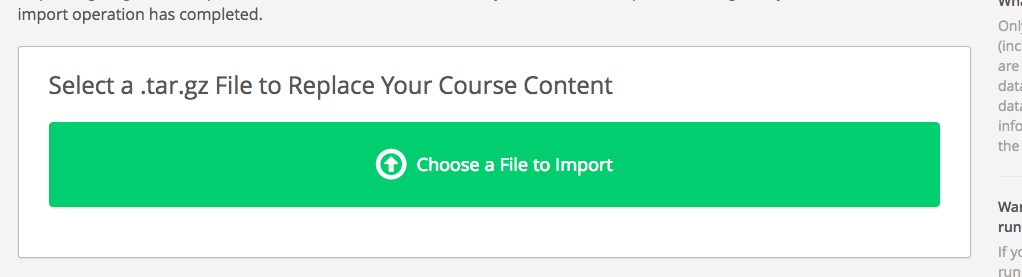
  3. Select “Choose a file to import”. Import Couse File

  4. Select the *.tar.gz file that you exported earlier.

Copying a Course for a MicroSite

It may be required to copy a particular course so that it shows up in a micro-sites catalog.

  1. Follow the export process above to save your course as a .tar.gz file

  2. Follow the import process above to import your course content into a new course shell with the correct organization code.

    1. During the import process, make sure that you give the new course the correct Organization code
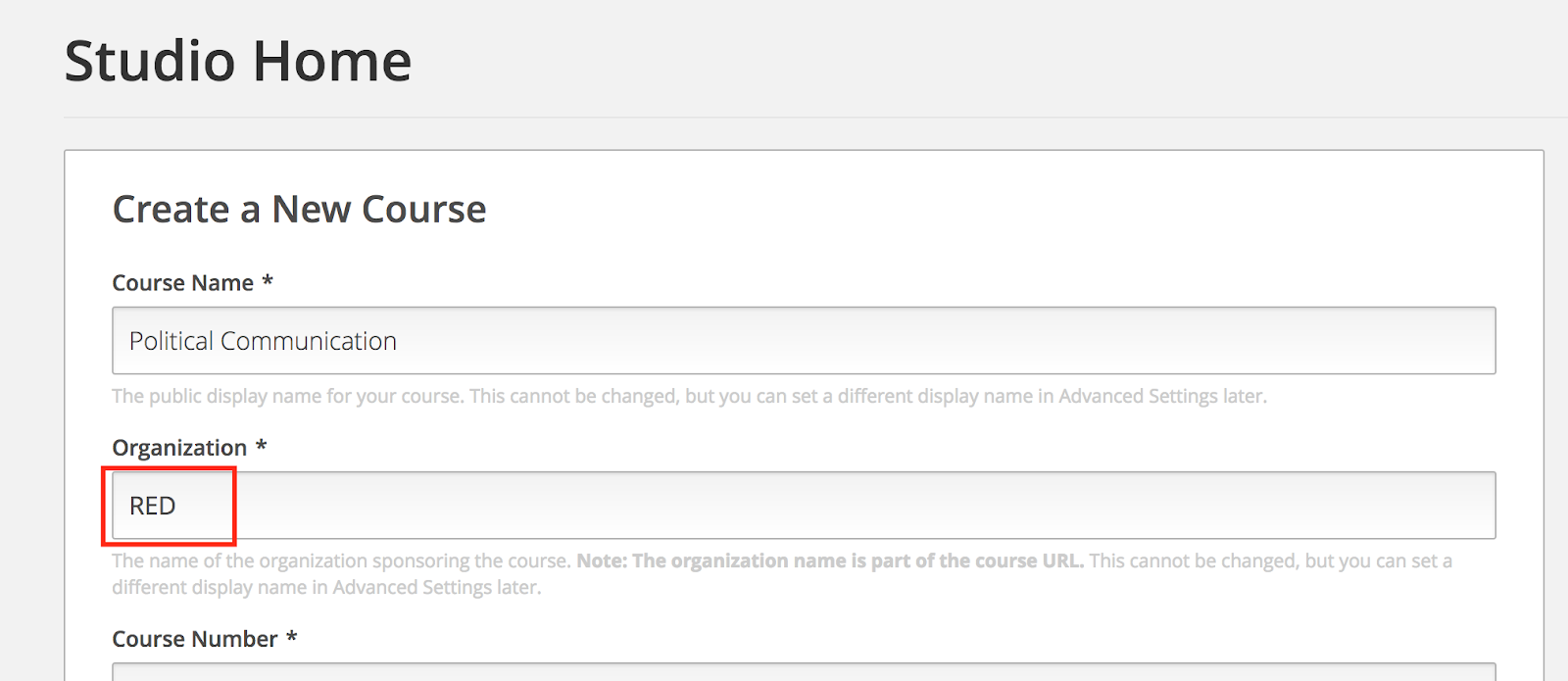
    2. Copy course microsites
  3. Delete the old course by following the Delete a Course section in this training document.

← Managing Course DiscussionsInactivate / Activate a User →
  • Exporting Courses
  • Importing Courses
  • Copying a Course for a MicroSite
NDI Open EdX Documentation
Docs
Create an Online Course
More
Curricu.me Website
Copyright © 2024 All Rights Reserved - National Democratic Institute