
NDI Open EdX Documentation

NDI Open EdX Documentation

  • Docs

›Adding Problems

Creating a Course

  • Create a New Online Course
  • Set Course Schedule & Details
  • Add Sections, Subsections & Units
  • Managing Unit and Component
  • Adding Videos
  • Adding HTML
  • Adding Discussions
  • Adding Problems

    • Adding Problems
    • Problem Types
    • Drag and Drop
    • Pointing on a picture
    • Adding Staff-Graded Assignment
    • Adding LTI Tools
  • Adding Images and Figures
  • Uploading Static Content
  • Course Visibility
  • Creating pages
  • Grading
  • Commonly Used Advanced Settings

Running a Course

  • Managing Certificates
  • Common Instructor Dashboard Tasks
  • Managing Course Discussions

Advanced Management

  • Importing / Exporting Courses
  • Inactivate / Activate a User
  • Understanding User Roles
  • Set a user to staff or superuser
  • Server Tasks

    • SSH into Server
    • Delete a Course

Instructional Design Tools & Strategies

  • Video: Basic Production
  • Video: Scripting
  • Video Strategy: Introduction & Summary Videos
  • Video Strategy: Interview
  • Video Strategy: Interactive Video
  • Feedback: Feedback Basics
  • Engagement: Discussion Call to Action
  • Engagement: Wordcloud
  • Engagement: Course Explorer
  • Engagement: Journal
  • Engagement: Annotation
  • Engagement: Interactive Map

Adding Staff-Graded Assignment

A Staff-Graded Assignment is a flexible problem type that allows you to accept an uploaded submission from a student, then have an instructor provide a grade and optional feedback for that submission.

  1. Before you can use a Staff-Graded Assignment, you must have the block installed and add it in your advanced settings.
    1. Navigate to 'Settings'>'Advanced Settings' in your course.
    2. In 'Advanced Module List' add "edx_sga".
      1. Ensure that "edx_sga" is wrapped in double quotes, and that it has a comma after the item unless it is the last or only item in the list. Advanced Setting

    3. Save your changes
  2. Back in your unit, click the 'Advanced' component, then 'Staff Graded Assignment' Add SGA component
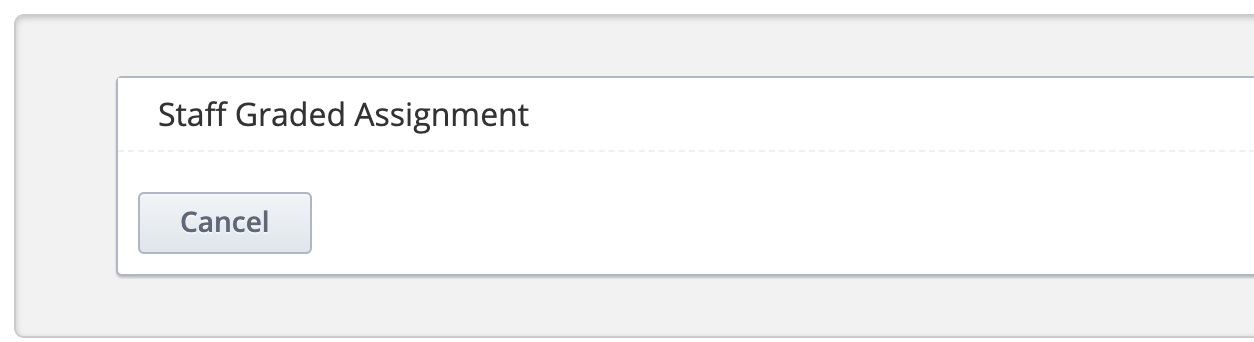
  3. Edit the following fields:
    1. Display name - This is displayed above your submission block on the LMS. E.G Final Paper

    2. Maximum Score – The maximum possible points a student can receive. It is advisable to keep this 100. E.G Category goes here

    3. Problem Weight - Leave this blank.

    4. Show Answer – You may choose to show the student a suggested response. By default, this is 'Past Due' or when the deadline has passed. You can also choose other options like 'Finished' for after the student has submitted.

    5. Solution - The suggested response/solution that you show to the student.

← Pointing on a pictureAdding LTI Tools →
NDI Open EdX Documentation
Docs
Create an Online Course
More
Curricu.me Website
Copyright © 2024 All Rights Reserved - National Democratic Institute