
Create a New Online Course
Log into Studio. Depending on your configuration, you may access the studio by appending :18010 to the end of your LMS url. So edx.curricu.me becomes edx.curricu.me:18010. Or you may have a custom studio url (e.g. studio.curricu.me).

Click on ‘+ New Course’ in the top right
Fill in the details for your new course
Course Name – The full name shown on your course dashboard, reports, course lists, etc.
- E.G. How to Build a Custom MOOC
Organization – The short code for your organization. In a single-tenant installation, this field has little purpose. It is best to pick a consistent name and use it for all courses. E.G. E-LearnOrg. In a multi-tenant installation this field determines which site the course will appear on.
For NDI:
NDI = ed.ndi.org
RED = redinnovacion.ndi.org
TPIE = tpie.demcloud.org
HDP = parliamentaryoversight.ndi.org
Course Number – A unique identifier for your course. E.g. MOOC101
Course Run – The time in which your course is offered.
- E.g. A course you build and run once in 2014 might use ‘2014’
- E.g. a course you run each quarter might use ‘2014_H1’ and then ‘2014_H2’ for two separate instances.
Click Create to save your course details.
After clicking Create, the course will be created and you will be landed on ‘Course Outline’ webpage of that particular course.
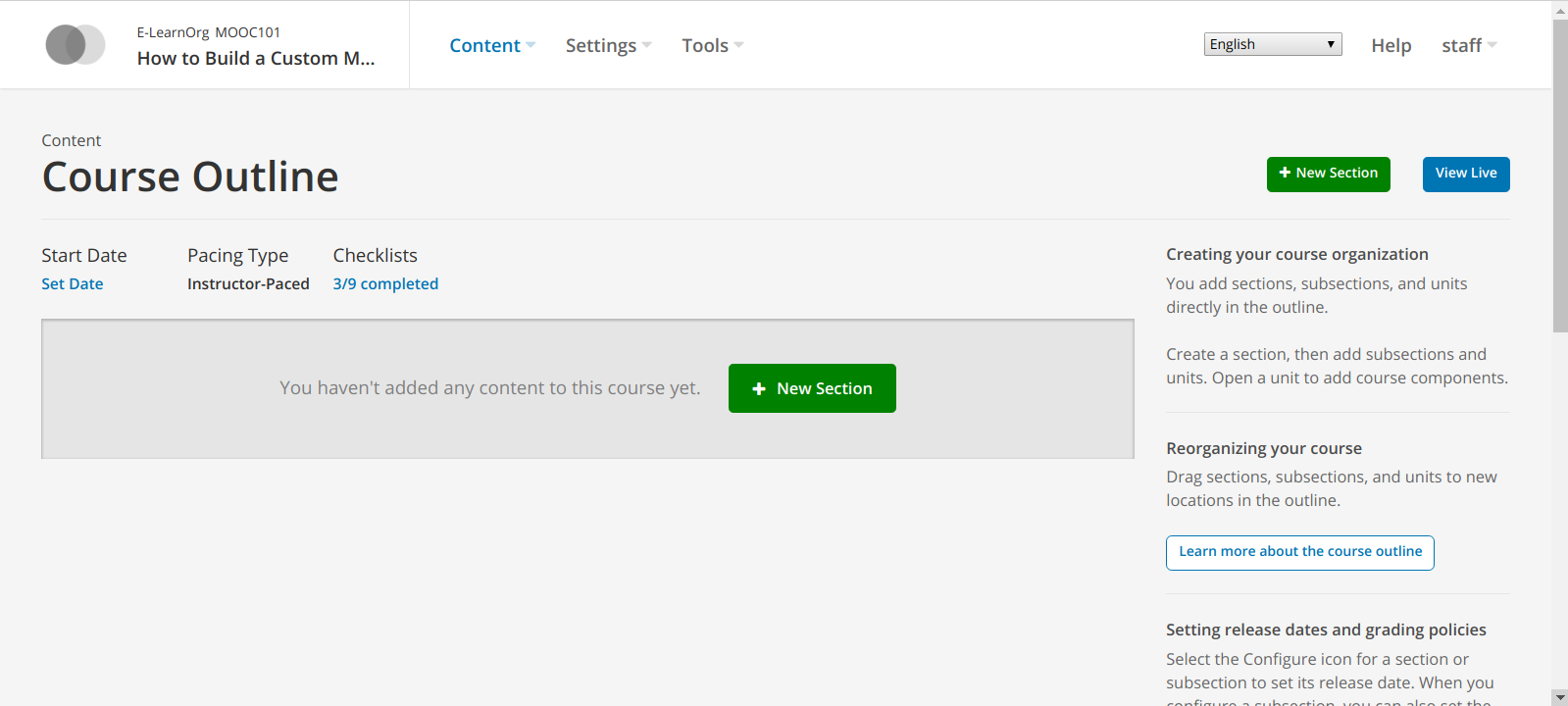
This means that your course has been successfully created and you are ready to insert content in it. The content of the course is also termed as ‘Courseware’.